Accounts
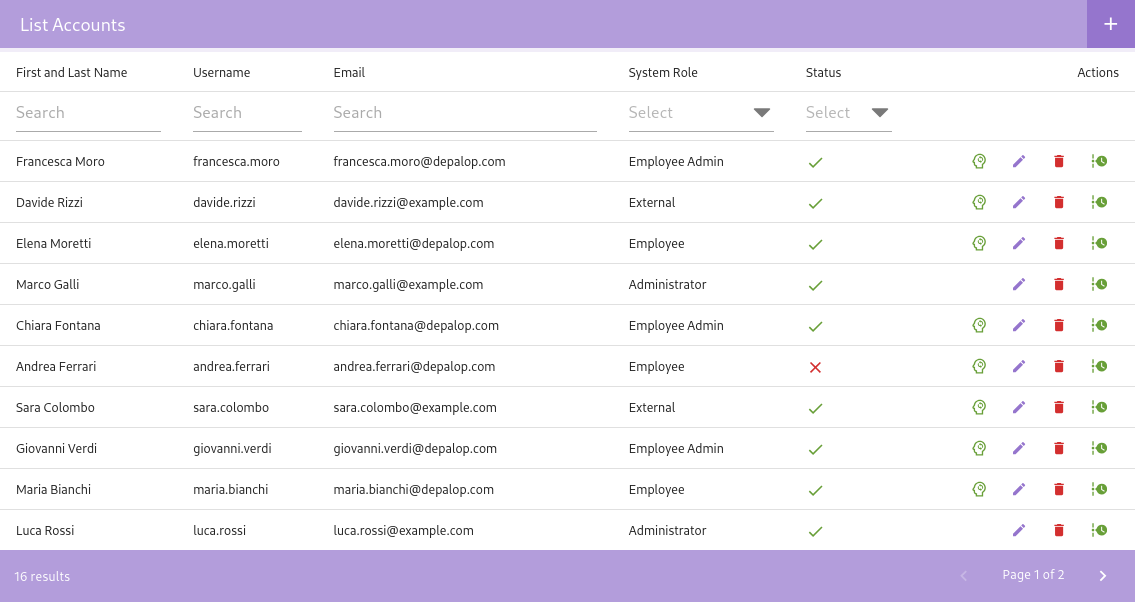
In a TMF-compliant system, every user must have an associated account to access the system and perform their activities. To manage creating and editing user accounts, from the main menu select Accounts to open the user accounts page.
Add Account
To add a new account, click the "Add Account" button (identified by a + symbol) located at the top-right of the table.
A new dialog box will appear, prompting you to enter the details of the new account.
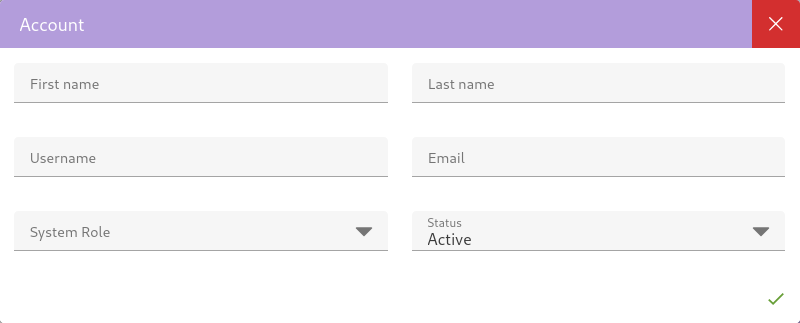
After entering the account details, click the Save button to create the new account.
The system prevents the creation of an account if the provided "Username" or "Email" are already in use by an existing account, ensuring the uniqueness of credentials.
After creating a new account, the system automatically sends an email to the provided address containing a link that allows the user to set their password.
System Role
Each account has a system role assigned to it, which determines the permissions and access levels for that account.
Administrator
Full system administrators responsible for overall configuration, user and permissions management, and system-level settings.
User account with this role has Create/Read/Update/Delete on all accounts and system resources; manage roles, system configuration, and view full audit trails. This is the highest privilege level — assign sparingly and restrict for compliance and security.
Employee Admin
Managers or local administrators who manage employee accounts within a specific organization, department, or domain. User account with this role has permissions to Create and modify employee accounts, assign standard roles, reset passwords, and limited access to non-critical system settings. They could also view full audit trails, manage roles and manage protocol settings.
Employee
Regular internal users who perform day-to-day tasks within assigned modules and workflows. User account with this role has permissions to access and operate business modules according to assigned role-specific permissions; cannot manage other user accounts or system settings.
External
Third‑party users such as contractors, vendors, or auditors granted restricted access to selected areas.
Depalop Client
Client or partner portal accounts with access confined to their own projects, data, or tenant scope.
Filter Accounts
It's possible to filter accounts by First Name, Last Name, Username, Email, System Role, Status.
Disable Account
It's possible to disable accounts by editing the account using the Edit button next to the account and selecting the Status option to Disabled. Disabling an account will prevent the user from logging in and accessing the system.
Emulate Account
eTMFlex allows you to emulate an account and view the system with that account's permissions while still maintaining traceability, in fact all operations performed during emulation are still registered under the name of the user who initiated the emulation.
You can emulate an account by clicking on the icon next to the account in the list:
When you emulate an account, the system show a red bar at the top of the screen. This bar serves as a visual indicator that you are in emulation mode and allows you to return to the previous view (the original user's view).
Remove Account
You can remove an account by clicking on the icon next to the account in the list:
When you remove an account, all associated data and permissions are permanently deleted from the system.