Data Explorer
The Data Explorer is the core module of eTMFlex, providing a structured view of the electronic Trial Master File (TMF) folders, documents, and their contents.
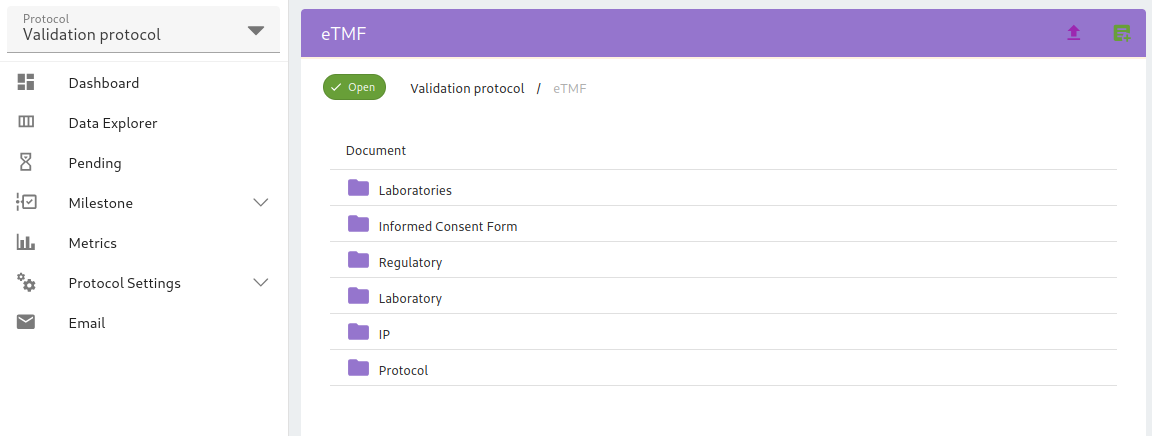
The data explorer is protocol-specific, so it is necessary to select the protocol you want to work on before you can use this feature.
Folders
The system displays a hierarchical folder view where documents and information are organized in a classic tree structure, including the paths and documents related to the selected protocol, which is conveniently shown in the header bar along with its status.
The status of the protocol influences the operations that can be performed in the data explorer. In particular, for protocols in Draft or Closed status, it is not possible to add documents.
The tree structure in which documents are inserted is managed through the Data Dictionary, which must also be used if you wish to add, remove, or modify a folder.
Documents
For each document present in the Data Explorer, the system displays key information such as the name, version, revision, upload date, the user who uploaded the document, and its current status.
By selecting a document or a placeholder in the hierarchical view, the system redirects the user to the specific view of that document or the Placeholder view, allowing detailed content visualization or management.
The system manages the complete lifecycle of documents, including uploading, approval, and deletion.
Upload a new document
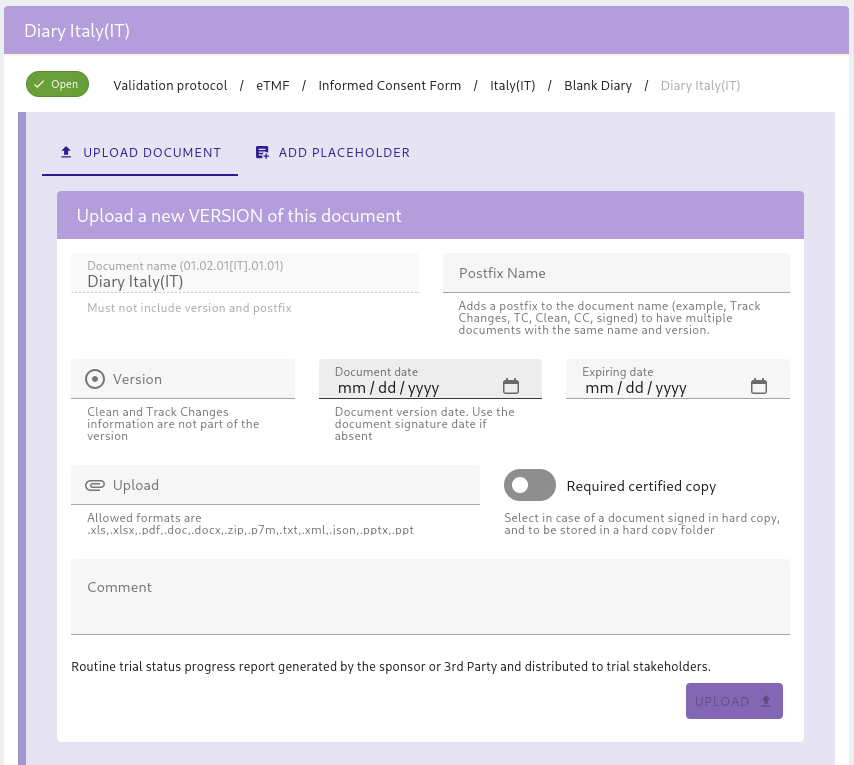
Document Date mandatory
Each document has a Document Date. This is a mandatory field and should be used to indicate the date of the document, such as the date of a report, the date of a contract or the document signature date.
Upload file mandatory
This is where you choose the document file to upload from your computer. Allowed formats are xls, xlsx, pdf, doc, docx, zip, p7m, txt, xml, json, pptx, ppt.
Version non mandatory
Each document could have a custom Version that is appended to the document name to distinguish between different versions of the same document (e.g. 1.0, 2.0). By default, the version will be NA.
Postfix name non mandatory
Each document could have a custom Postfix name that is appended to the document name to distinguish between different purposes of the same document. This is non mandatory and can be used to indicate a specific purpose, such as a Clean postfix name to indicate that it is a cleaned version of the original document, a Signed postfix name to indicate that it is a signed version of the document, or any other custom purpose.
Comments non mandatory
This is where you can add a comment to the document for other users to see.
Note
As you can see there is a description of the document on the bottom of the dialog. This comes from the description field in the Data Dictionary.
Document view
Uploade a new version
Upload a new revision
eTMFlex supports uploading new revisions of documents. Revisions are documents with the same name and version as the original document, but with updated content. This operation is needed when a wrong document is uploaded and needs to be replaced.
Download
In the document view, you can download the document by clicking on the download button on the top right corner of the page.