Data Dictionary
A Data Dictionary in the context of an eTMFlex is a controlled and authoritative catalog that defines the structure, meaning, and rules for the data elements used to represent clinical trials documents and metadata within the system related to a specific Protocol. It acts as a single source of truth describing how nodes in the eTMF hierarchy are named, classified, linked, and validated.
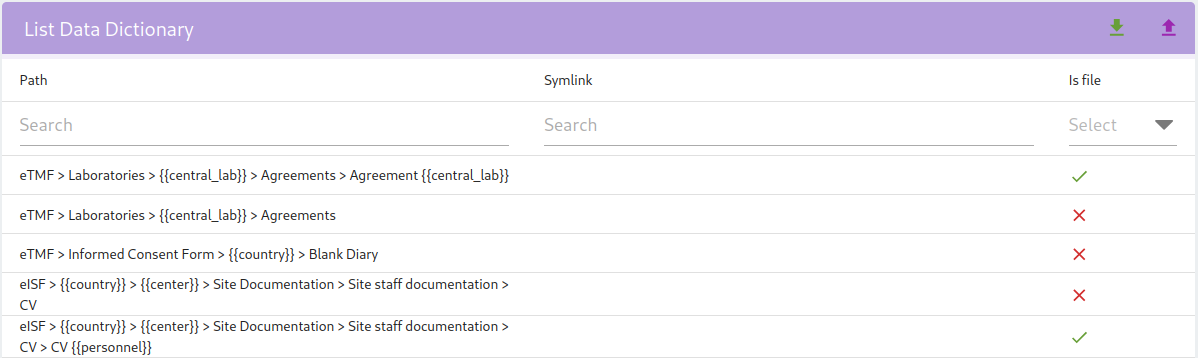
Structure
The Data Dictionary must be provided as an Excel file in XLSX format and should follow the column structure expected by the system.
Expected columns are:
level1,level2,level3(as much as needed)is_file(to flag if is a file or a folder)symlink(allow to create a symlink to another node)description(the description shown uploading the document)human_code_template(used to generate)
example:
| level1 | level2 | level3 | level4 | level5 | description |
|---|---|---|---|---|---|
| eTMF | Regulatory | Competend Authority {{country}} | Submission and authorization | Approval process of the competent authorities CA | |
| eISF | {{country}} | {{center}} | Site staff documentation | CV {{personnel}} | Folder for site staff CVs |
There isn't really a standard for the structure of the Data Dictionary, but for simplicity we provide an example Data Dictionary based on the TMF Reference Model you can download here.
Trial Master File Reference Model - 27 FebVariables
One of the powerful features of the Data Dictionary is the ability to define variables that can be used throughout the document. Those variables will be replaced with actual values to construct the Data Explorer structure.
Variable list
{{country}}{{central_lab}}{{organization}}{{center}}{{personnel}}{{ip}}
Upload a Data Dictionary for Draft Protocols
This feature allows uploading the Data Dictionary into the system. Uploading is permitted only when the protocol status is Draft, allowing flexible configuration during the initial phase.
WARNING
Note that uploading a new Data Dictionary in protocol will remove any existing documents associated with the protocol.
Check the specific section if you need to modify the Data Dictionary on Open protocols.
Download a Data Dictionary
It is possible to download the Data Dictionary for the selected protocol.
The name of the downloaded file will follow a standard format that includes the protocol identifier and the date/time of the download (e.g., [Protocol_ID]_DataDictionary_[YYYYMMDD_HHMMSS].xlsx).
Note
This file is specific to the protocol so it cannot be used as-is to update the DD for a different protocol.
Update a Data Dictionary for Open Protocols
Once the DD has been uploaded for the first time using the predefined format, it is possible to update the DD — and thus the tree structure — by uploading an Excel file generated by the system.
Simply download the Excel file using the download button; the format is the same as the DD uploaded the first time but it contains hidden columns that hold the unique IDs of the DD records saved in eTMF (these must not be altered under any circumstances).
This characteristic differentiates it from the initial upload DD, effectively making it an update DD. The system requires an update DD if a DD has already been uploaded for the selected protocol.
You cannot use an initial upload DD to perform an update because the system needs the IDs to compute diffs between the current records and the modified ones. It is, however, possible to add new rows (only at the bottom of the sheet) that do not contain IDs to add new branches to the real tree.
When an update DD is uploaded, the system retrieves all IDs from the hidden columns and compares them with the IDs from the previously uploaded DD. If it finds any discrepancy it will not allow the update and will return an error message. Physical deletion is not (currently) permitted, so if rows are removed from the update Excel file the system will detect an ID discrepancy and return an error.
Logical deletion (hidden node) has been handled and can be achieved by adding the variable {{hidden}} to the name of the node you want to hide. This change is reversible by simply removing the {{hidden}} variable afterwards.
The update DD highlights in green all nodes of the DD tree previously uploaded and it is possible to modify their contents to update the real tree nodes.
You only need to edit the cells highlighted in green; the formulas will then propagate the change to all paths where the modified node appears.
Using the update DD you can update all previously uploaded data (name, is_file, human_code_template, symlink, description, comment).
Additionally, the update DD contains information about the status of symlinks: if cells are highlighted in red it means the related symlink has an error and for some reason the target node could not be attached; the error message can be read from the cell note.