Protocols
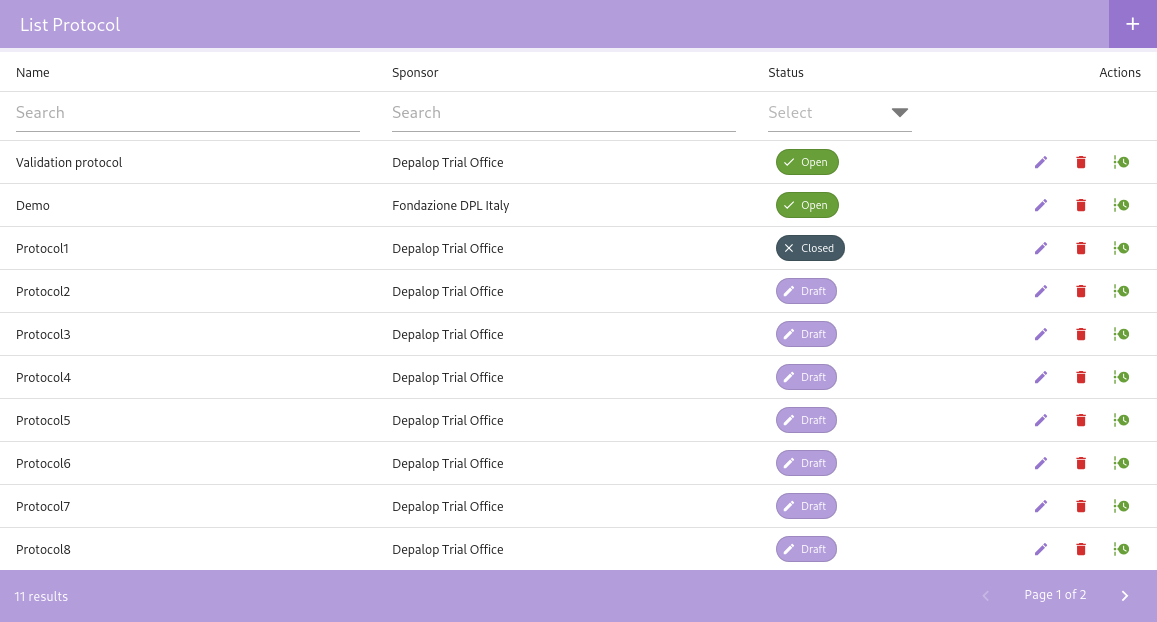
This section provides an overview of the protocols used in eTMFlex and allows to manage them. To access this section, click on the Protocols link in the global navigation menu on the top-right side of the screen.
Filter Protocols
You can filter the list of protocols displayed in the Protocols module based on specific criteria. You can search for protocols by Name, Sponsor and Status, making it easier to quickly find the desired information.
Add New Protocol
This section describes how to add a new protocol in the eTMFlex system, guiding you through the steps necessary to create and configure a new study.
Procedures
- At the top of the Protocols page, locate the button with the
+symbol. - Hover the pointer over the button to display the tooltip "Add Protocol".
- Select the "Add Protocol" button.
A new dialog box will appear, prompting you to enter the details of the new protocol.
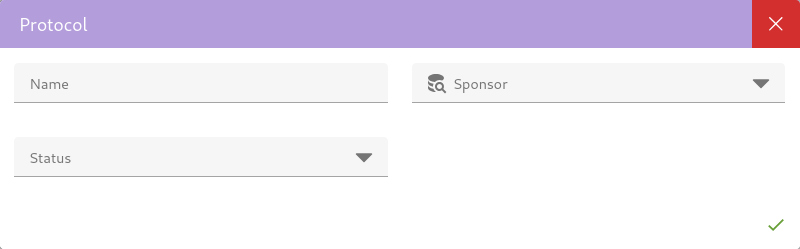
After entering the protocol details, click the Save button to create the new protocol. Each field is mandatory and must be filled in correctly (you will be prompted to fill in the missing fields).
Protocol Status
The status of a protocol determines whether it can be used for studies or not.
Draft
Draft
The protocol is not currently active and cannot be used for studies. This is the initial status of a protocol and indicates that the protocol is being developed and not yet ready for use. You can edit the protocol details, assign users, change settings, add organizations and change its status to Open when it is ready for use. Note that you cannot upload files with a protocol in the Draft status.
Open
Open
The protocol is currently active and can be used for studies. In this status, you can upload files and assign users to the protocol. You can also edit the protocol details, change settings and add organizations.
Closed
Closed
The protocol has been archived and is no longer available for use.
Edit Protocol
You can edit the details of an existing protocol by selecting the Edit button next to the protocol name in the Protocols module.
Remove Protocol
A protocol can be removed by selecting the Remove button next to the protocol name in the Protocols module. A confirmation dialog will appear to confirm the removal of the protocol.
Audit Trail
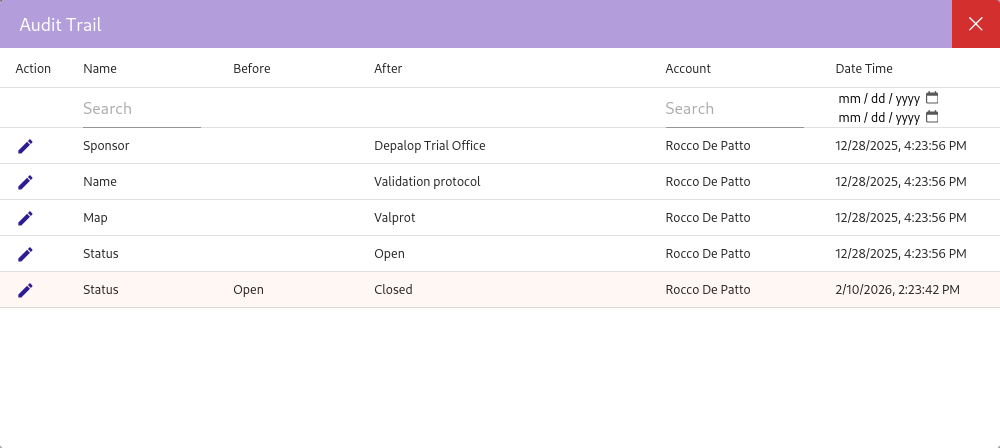
Each protocol has an audit trail that records all changes made to the protocol. The audit trail includes information about who made the changes, when they were made and what changes were made. You can view the audit trail by selecting the Audit Trail button next to the protocol name in the Protocols table.