Authentication
This section of the eTMFlex User Guide provides detailed information about the authentication features. It covers functionalities related to user login, password management, and security measures to ensure safe access to the system.
Sign In
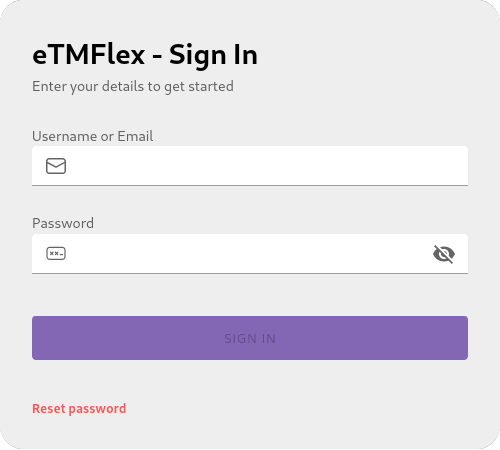
The first step in accessing the eTMFlex web application is to sign in using your credentials. You can use your email address and password on the login page. The system verifies the validity of the provided credentials to grant access.
Prerequisites
- A valid eTMFlex user account with a registered email address and password.
- Access to a web browser and the eTMFlex login page.
Procedure
- Open a web browser and navigate to the eTMFlex login page.
- In the field labeled "Email" or "Username," enter the email address associated with your eTMFlex account.
- In the field labeled "Password," enter your account password.
- Select the "Sign In" button.
After entering valid credentials, you will be redirected to the Dashboard of the eTMFlex application, indicating a successful login.
Common Errors / Troubleshooting
- Invalid credentials: If the entered email or password does not match a registered account, an error message will be displayed. Carefully check the spelling and try again.
- Account locked: After a certain number of failed login attempts, the account may be temporarily locked for security reasons. In this case, follow the on-screen instructions to unlock it or contact the system administrator.
- Connection issues: Ensure you have a stable internet connection. If the page does not load or login is slow, check your connection.
- Forgotten password: If you have forgotten your password, use the "Forgot Password?" feature on the login page to initiate the reset process.
Login Attempts
eTMFlex monitors failed login attempts. If a user unsuccessfully attempts to log in 5 consecutive times, the system temporarily locks access for that user for 15 minutes.
This feature activates automatically to protect your account from unauthorized access attempts. It is not an action you need to perform, but a security measure of the system.
Reset Password
In case you forget your password, eTMFlex provides a secure mechanism to recover access to your account.
Procedure for Password Recovery:
- From the eTMFlex login page, locate and select the
Reset passwordoption. - On the password recovery page, enter your username or email address in the designated field.
After providing your username or email address, the system sends an email containing a secure link to reset your password.
Note
The system automatically registers the event of sending the password reset email for security and audit purposes.
Password Rules
When creating a new user account or modifying an existing password within eTMFlex, it is essential to follow these password rules to enhance security. These rules ensure that your password meets specific criteria, making it harder to guess. The system checks the complexity of your password in real-time as you type.
The password rules are:
- Must be at least 8 characters long.
- Must include at least one number.
- Must include at least one uppercase letter.
- Must include at least one special character (e.g., !, @, #, $, %, ^, &, *).
Expiring / Expired Password
eTMFlex notifies you when your password is about to expire. Starting a certain number of days before expiration (10 days), every time you log in to the system, you will receive a notification informing you how many days are left until the expiration of your password.
Change Password
To change your password, you can click on the "Change Password" button where your name appears in the top right corner of the screen. This will open a modal where you can enter your new password.
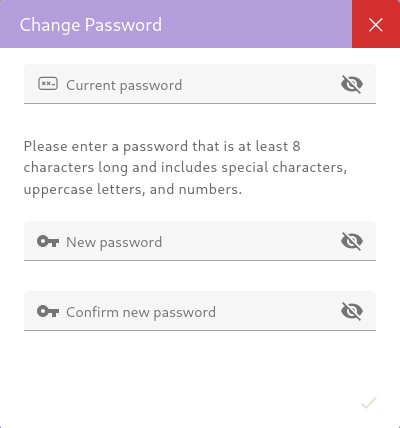
Change Expired Password Request
If you attempt to access eTMFlex with a password that has already expired, the system will block access and immediately request that you update your password before proceeding.